
Reports in the GMetrix Administrator Portal help you review student performance, Course activity, and Testing Center operations. Choose a report, then use its filters to find the activity you need.
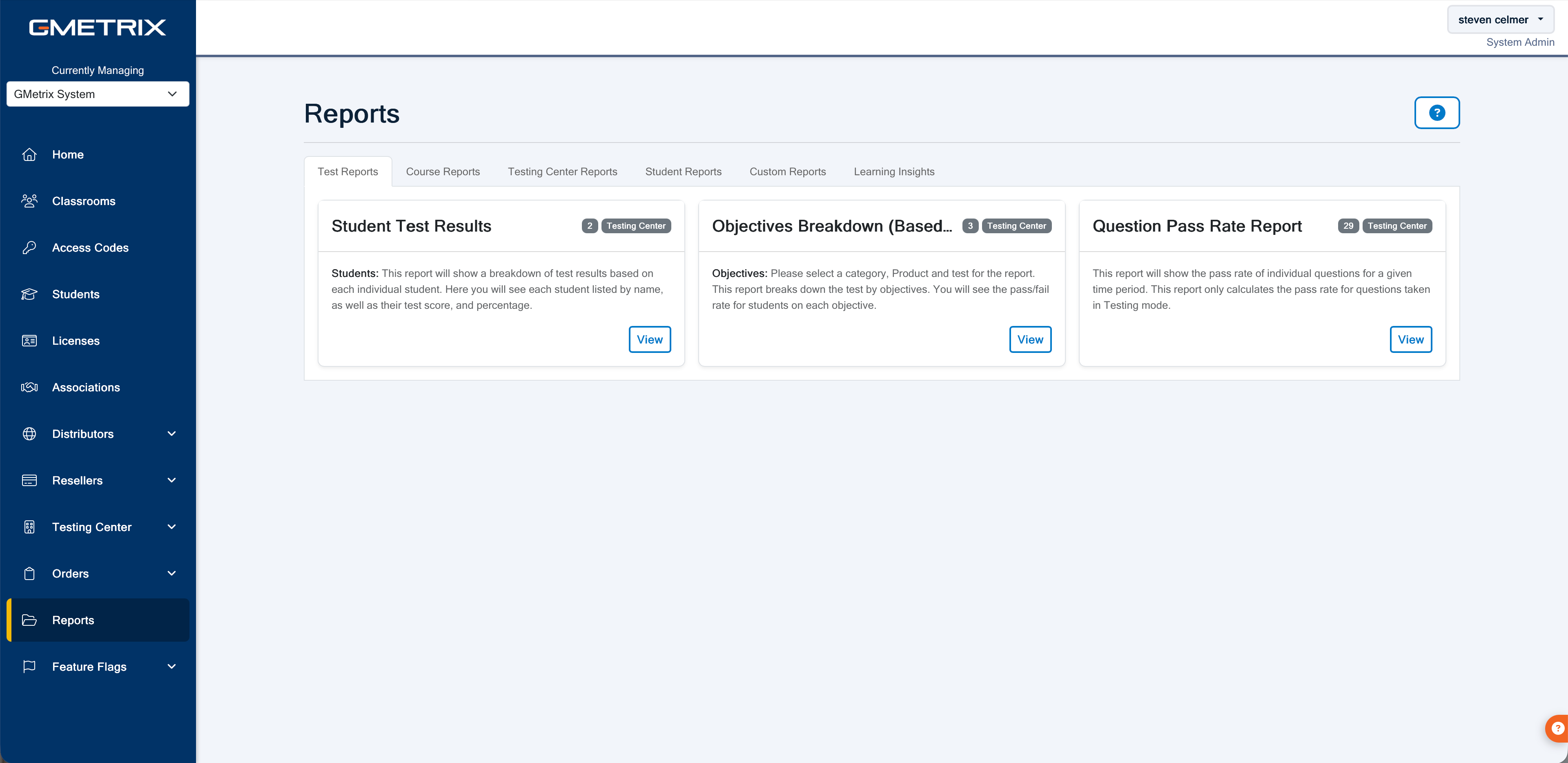
How Reports Are Organized

In the Reports view, reports categories appear as tabs. Select a tab to browse that category. Each report has a card with a name, a description, and a View button.
The reports categories include Test Reports, Course Reports, Testing Center Reports, Student Reports, Custom Reports, and Learning Insights. Browse the categories available in your account.
Select a report
- Sign in to the GMetrix Administrator Portal.
- From the sidebar, select Reports.
- Select the tab for the category that matches the activity you want to review.
- Read the card descriptions to find the report you need.
- Select View on that report's card.
- Select Report Filters to choose which activity to include, then select Run Report.
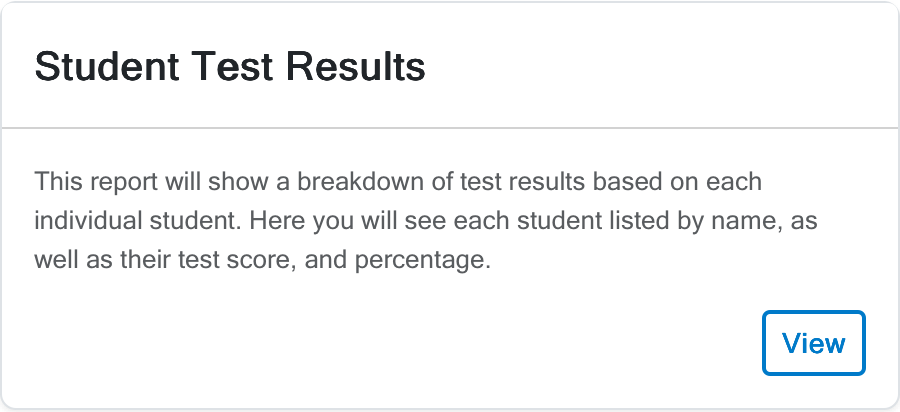
For example, to review individual student test scores, select Test Reports, then select View on the Student Test Results card.
Choose the Activity to Include
Filters let you focus a report on a time period, product, Course, Classroom, or student. The available filters depend on the report.
The Category filter selects a content category within a report. The reports categories in the Reports view help you find a report.
For required fields, date options, and help adjusting results, see Filter and Run Reports.