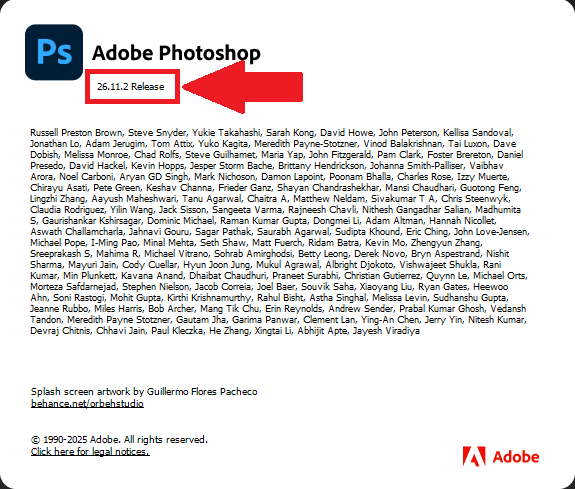
It's important to ensure that the Adobe application installed on your device aligns with our Adobe version compatibility so that our GMetrix SMS application can interface properly. Please see here for our article on SMS Compatibility: Adobe Creative Cloud and please see below on how to view the version number of the Adobe program installed on your device.
1. Open the Adobe Creative Cloud Application Desktop Application

2. Select the Apps category on the left hand side of Adobe Creative Cloud

Now follow one of the different ways seen below to find the version of your installed Adobe program.
TABLE OF CONTENTS
Using the Name of the Adobe Application (A)
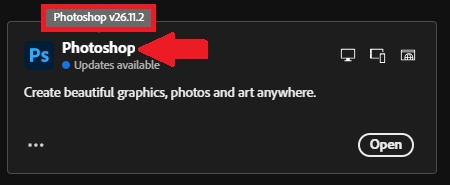
3A. Hover your mouse over the name of your Adobe program (Ex: Photoshop)
Previous Version Menu (B)
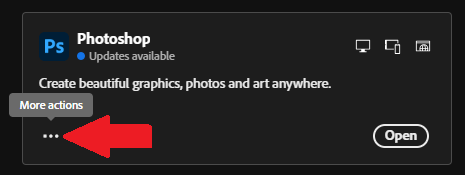
3B. Select the floating ellipses or More Actions button
4B. Select the option for Other versions
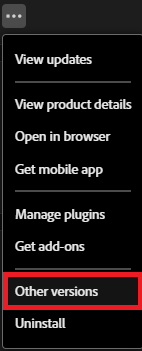
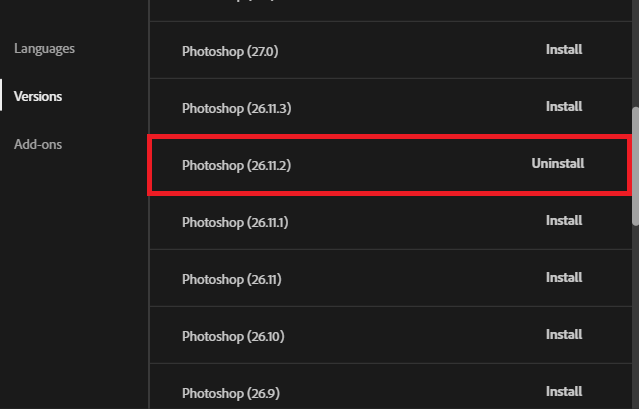
5B. Find the version in the list that displays the option to Uninstall (this is the version you have installed on your device)
Inside an Adobe Application (C)
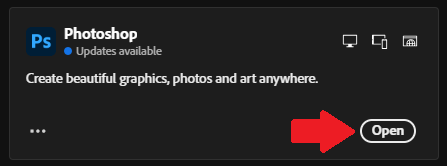
3C. Select Open on the Adobe application
4C. Using the ribbon at the top, select the Help tab

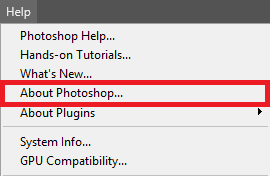
5C. Select About Photoshop
6C. Find the release number